|
|
|
0 members (),
1,728
guests, and
25
robots. |
|
Key:
Admin,
Global Mod,
Mod
|
|
S |
M |
T |
W |
T |
F |
S |
|
|
|
|
|
1
|
2
|
3
|
|
4
|
5
|
6
|
7
|
8
|
9
|
10
|
|
11
|
12
|
13
|
14
|
15
|
16
|
17
|
|
18
|
19
|
20
|
21
|
22
|
23
|
24
|
|
25
|
26
|
27
|
28
|
29
|
30
|
31
|
|
There are no members with birthdays on this day. |
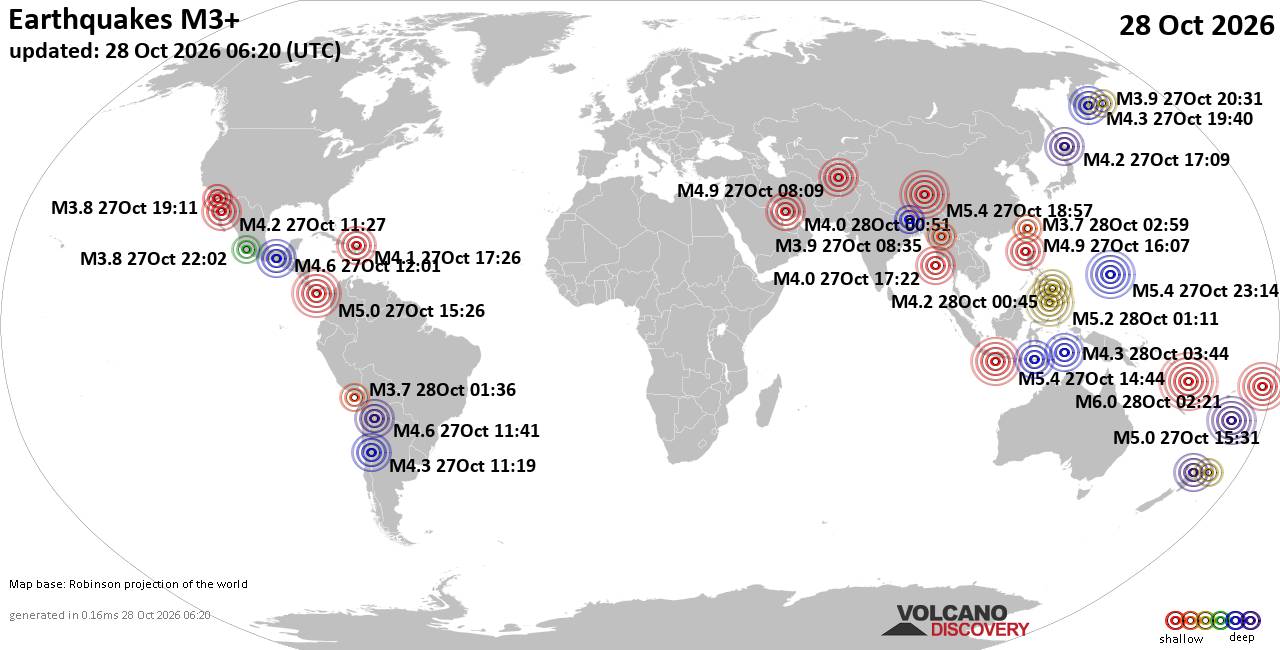
World Earthquake Report for Wednesday, 28 October 2026
• M 2.6 - 116 km E of Chignik, Alaska
• M 1.1 - 19 km WNW of Happy Valley, Alaska
• M 3.6 - 18 km E of Susitna North, Alaska
• M 2.0 - 20 km SE of Waikoloa, Hawaii
• Moderate mag. 4.5 earthquake - Philippine Sea, 87 km southwest of Yonaguni-...
|

#569147
Thu 02 Jul 2020 10:30:AM
|
Joined: Feb 2001
Posts: 678,977
Launch Director
|
|
Launch Director
Joined: Feb 2001
Posts: 678,977 |
Can Microsoft Word read to me? Yes, it can. There are three ways to accomplish this task: The Speak and Read Aloud features in Word, or the Narrator feature in Windows.
The Speak feature was incorporated into Microsoft Office (Word, Outlook, PowerPoint, etc.) back in version 2003. It was called Text to Speech (TTS) then, and it functioned much the same as it does now. Fortunately, it’s a very simple procedure to set up and use, so you can get started immediately. Add the Speak button to the Quick Access Toolbar
1. Click the Customize arrow on the Quick Access Toolbar.
2. From the dropdown menu, select More Commands. To read this article in full, please click here Source: Microsoft Word reads to you: How to use the Speak and Read Aloud commands
|
|



CMS The Best Conveyancing solicitors conveyancing quotes throughout the UK
For any webhosting enquiries please email webmaster@aus-city.com
|
|
Entire Thread
|
 Microsoft Word reads to you: How to use the Speak and Read Aloud commands
|
Webmaster
|
Thu 02 Jul 2020 10:30:AM
|
|
Forums60
Topics898,020
Posts932,817
Members2,960
| |
Most Online102,106
Jul 10th, 2026
|
|
|
|
|

|