Urrrgh, not working! It told me my photo was too big,so I sized it down.Now it's saying I need an extention jpg ipeg blah blah blah, I dont know if I'm sizing wrong, or how to change it from bitmap to what I need.I'm soooooo confused !None of my pics will post.Please help
I'm sooo happy to help. So what is the extension of your file? And hey, at least you figured out how to size the photo (no easy task). Love your persistence.
If we can't work it out here, you can send me a copy of the photo so I can have a look at it and work out what might be wrong.
Meanwhile, if you feel like it, use the Chat Forum to goof around in and try to post one of the photos that I've already posted (since we know that it will be in the right format), or any other little photo from around the place, just to see how it works.
I THINK I know how to resize them,they show up smaller in the "my pictures" file in my windows,but I could be doing it wromg. I'm not sure.
Oh & I think I tried posting a photo from 'Starchie's' collection that I sent to my computer to use paint tool on. I circled some things I wanted him to see, but couldn't pull it back on site through the manage files key. I'm pretty sure that it was the right size already...Oh I just remembered that I had to zoom it in paint shop to work on it,maybe that's what screwed it up I dunno. I'll send you both.
Oh and I circled the little gnome in you'r little wizzard pic & tried to re-post it & failed too.I'm just a mess!!!!
O.K.,tell me exactly what an extention is & I'd be happy to tell you what mine is for that photo...it says bitmap - is that the right thing? I'm just gonna send 'em all to ya 3 or 4 anyway.
Thank you sooo much, I know you'ed much rather be posting than trouble shooting in your free time, so I do really appreciate this!
When viewing an image on your computer you can "view" it larger or smaller without changing the actual "size" of the image. They look larger, but that is just using the magnifying feature to have a closer look.
To change the actual size you either "resample" the image to a new size or you "scale" the image (whichever term your program uses). When you scale your image, you are making it physically larger or smaller. For example, here is an image at 311 x 320 pixels/dots (width x height).
To make it smaller, I then scale or resample this image to 150 x 154 px (which is approximately 50% of the original size). You can scale by pixel or percentage.
Ask more questions and I'll give more answers and examples!
Oh I see, so did I do it right w/the eye picture that I resized? Because I remember adjusting that tool more than once for that. But I don't remember doing that for the others, which would explain why they didn't post.
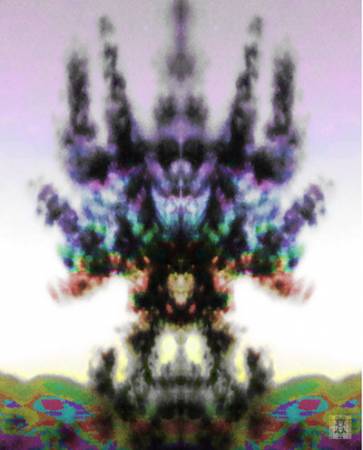
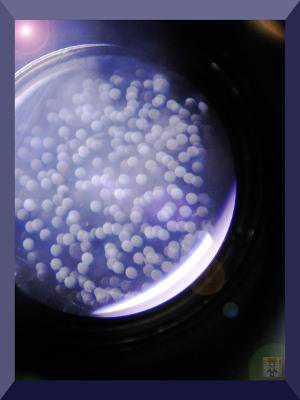
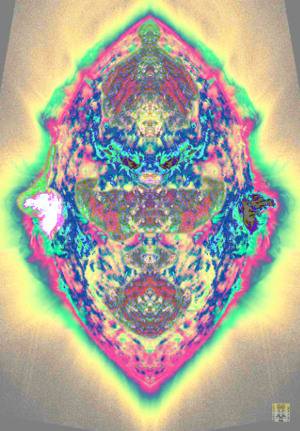
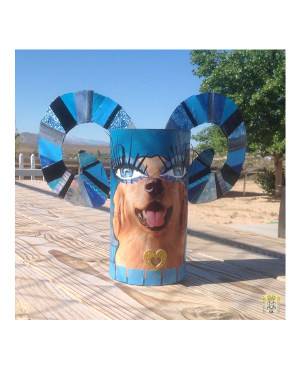
Okay, here are the two photos of the space eye you sent me. I merely resaved them from .bmp to .jpg format. So this is exactly how you have sized the files. The first one you named "eye of god 3.bmp" and the second one you named "2.bmp".
Below is also Starchie's photo in the size you sent to me. It was saved as .JPG, so it should have loaded without a problem using File Manager. Did you try to load it? You would have had to do a brand new post though in the Photo Gallery Forum because for some reason only the original poster can add photos.
Ok Alisa, I tried posting Strachie's photo again. Since you told me that it was already the right size, I went ahead & treid to do it...it didn't take. The error message " must fill out all feilds" appears & sends me back. It looks like the picture is being accepted in the box next to 'brouse' button, but once I click 'done adding files' it goes to the error message.
Also, after I click 'brouse',& it takes me to my C drive to pick a photo, I'm then prompted to either open or cancel in my windows fax & photo displayer. Am I supposed to save it, or not click any of those options, & just highlight the photo?
Too, could you pls email me step by step instructions as to resizing my picks? I know it's asking alot,but I've searched my entire windows program & can't find anything on that topic in my help tutorials.The only way I've figured out how to change anything picture wise, is to use the 'edit' prompt at the top of my toolbar, which takes me to my paint program, where I then go into 'image', & then yet another click onto 'attributes'. But once I'm in 'attributes' I'm not exactly sure what to do. Is this even the place I need to be for resizing?
I was really hoping to be able to send those marked photos of the gobblin to Flux. I think my computer hates me! I'm losing hair by the minute ... pretty soon I'll have no need for shampoo!
OMG! I didn't even know that took ! what a surprise to see it pop up w/my post, maybe I needed to include more text before submitting? I'm gonna try another one, but I still need help on the above stuff just to be sure.
OOOOOO yaaaaay!!! Now will this work if I'm replying to someone elses post in a different forum? Or do I need to post all photos in this forum & direct people here.
Congratulations! You are mastering all of this quickly. It is true.
I think the confusion may have been that you can't "see" the photos during preview when using File Manager. You only see them show up after you "Submit" your post.
What happens is...File Manager opens a window to allow you to browse your personal directories so you can choose one of your files. Then it uploads a copy of this file onto the forum server where it is stored.
And yes, you should be able to do this in any forum here. There is a limit as to how many photos you can attach through file manager PER post. I think 3 photos. But if you have more, just do another follow up post and attach more.
As for sizing your images...what is your photo paint program called?
ok, when I go into my pictures, I right click on the pic I want.It gives me a drop box, then I click 'open with', & it gives another drop box. From that my choices are: windows picture & fax veiwer, paint, or internet explorer. I assume it's windows but I'm not sure.
That's what I did to size a couple of photos, but didn't know if it just changed it for that viewing only. Also I wasn't really sure if that was THE tool to use or just ANOTHER tool to use. I guess it is THE tool.So thanx for confirming.
Could you reccomend a general percentage that will allow all of them to be postable? Like maybe as big as I can go w/out making it non-postable? Like maybe the percent you use.Thanx.
Also did you notice I posted my first link all by myself? Yay for me!(I feel so juvinile) And I figured out how to insert the spoiler AND a quote box,like you! I know this probably seems trivial & common knowledge to most, but I'm still just learning how to do all this, & am surprised every time I figure something out myself, as asking for help makes me feel like I'm being too co-dependant on others. So for me, BIG STEP. Because I usually just figure,"ah, I don't need all those fancey tools", & let them intimidate me!
Oh & I used a reply box as my practice box,so if you or webmaster find that one reply was edited & re-edited etc., It was just me praticing...hope you don't mind. I did make sure to delete it though.
Thank you so much Alisa , you've been a wealth of knowledge as usual! Between the sites tech problems, Fluxy's tech problems & my tech/experience problems, you don't get a moments rest do you? Thanx for being so helpful
Aww, thanks, JJ. It is truly my pleasure. And YES you are doing extremely well. I am still finding features I didn't know about and gingerly learning to use them.
The best percentage will depend on how large the image is initially. I have an old camera of 2.1 pixels and my photos are loaded as 1600 x 1200 pixels. I like to post photos at 500 or 600 pixels across -- which is approximately 35%.
But if your pixels are much higher, like say 4000 x 3000, then you would need to resize the photo to 15%.
If you can find a way to view your image's pixels (often under "properties") you can see by which percentage to decrease to get the ~ 600 x 450 pixels.
Also, using a reply box and "preview" is a great way to learn. Good job. It is totally inconsequential to logs, or to me, etc., so do it all day if you like!
Hope this helps! Keep asking and I'll keep answering.
No prob, you do good work. I would talk to webmaster about a raise if I were you, but that's just me....or just give hime extra chores around the house , for all your troubles....up to you !
Thanx for the above tips, I'm gonna try it out tonight.
Jaime, I was thinking you might be interested in installing the photo paint program called GIMP. That is what I have been using for a couple of years now. It is free... And there is a version for Windows. (Just google GIMP windows).
But all I could download for a manual, was the 2.4 version. Is that sufficient? I assume it's the same stuff right, just not as updated? Well gonna go check out my new program! Time to learn!
I don't know about the manual (but good on ya for digging in!!)... I just played around with GIMP to figure it out. Took a long time that way. But mostly, do google searches for specific things you want to know how to do. There are even some YouTube videos showing how to do things. I the internet!
*Also, sent you a PM about using the airbrush to tint images".
Copyright 1996 - 2026 by David Cottle. Designed by David Bate Jr. All Rights Reserved.
By using this forum, the user agrees not to transfer any data or technical information received under this agreement to any other entity without the express approval of the AUS-CITY Forum Admins and/or authors of individual posts (Forum Admins and DoD/USSPACECOM for the analysis of satellite tracking data).
Two-line elements (TLE) and all other satellite data presented and distributed via this forum and AUS-CITY mailing lists are distributed with permission from DoD/USSTRATCOM.


![[Linked Image]](http://www.metawake.info/images/instruction/attaching_photos.jpg)
![[Linked Image]](http://www.metawake.info/images/instruction/attaching_photos2.jpg)


 Reply
Reply Quote
Quote




 not working! It told me my photo was too big,so I sized it down.Now it's saying I need an extention jpg ipeg blah blah blah, I dont know if I'm sizing wrong, or how to change it from bitmap to what I need.I'm soooooo confused
  !None of my pics will post.Please help

 feature to have a closer look.
![[Linked Image]](http://www.metawake.info/images/art/alien_circle_patch.jpg)
![[Linked Image]](http://www.metawake.info/images/art/alien_circle_patch2.jpg)


 !
! , you've been a wealth of knowledge as usual! Between the sites tech problems, Fluxy's tech problems & my tech/experience problems, you don't get a moments rest do you? Thanx for being so helpful

 if I were you, but that's just me....or just give hime extra chores around the house
  , for all your troubles....up to you
  !
! And there is a version for Windows. (Just google
![[Linked Image]](http://www.freesmileys.org/smileys/smiley-happy110.gif)
![[Linked Image]](http://www.freesmileys.org/emoticons/emoticon-tv-001.gif)
![[Linked Image]](http://www.freesmileys.org/smileys/smiley-signs153.gif)
 Awwww... I love the "graemlin".
![[Linked Image]](http://www.metawake.info/images/graemlins/yougo.gif)
![[Linked Image]](http://www.freesmileys.org/smileys/smiley-dance011.gif)
![[Linked Image]](http://www.freesmileys.org/smileys/smiley-computer004.gif)
![[Linked Image]](http://www.freesmileys.org/smileys/smiley-hug012.gif)
![[Linked Image]](http://www.metawake.info/images/graemlins/smart.gif)


 But mostly, do google searches for specific things you want to know how to do. There are even some YouTube videos showing how to do things. I
  the internet!